Step-by-Step Guide to Issuing Credentials
This guide walks you through the complete process of issuing a credential using the Skippy ID web interface.
The Complete Issuance Flow
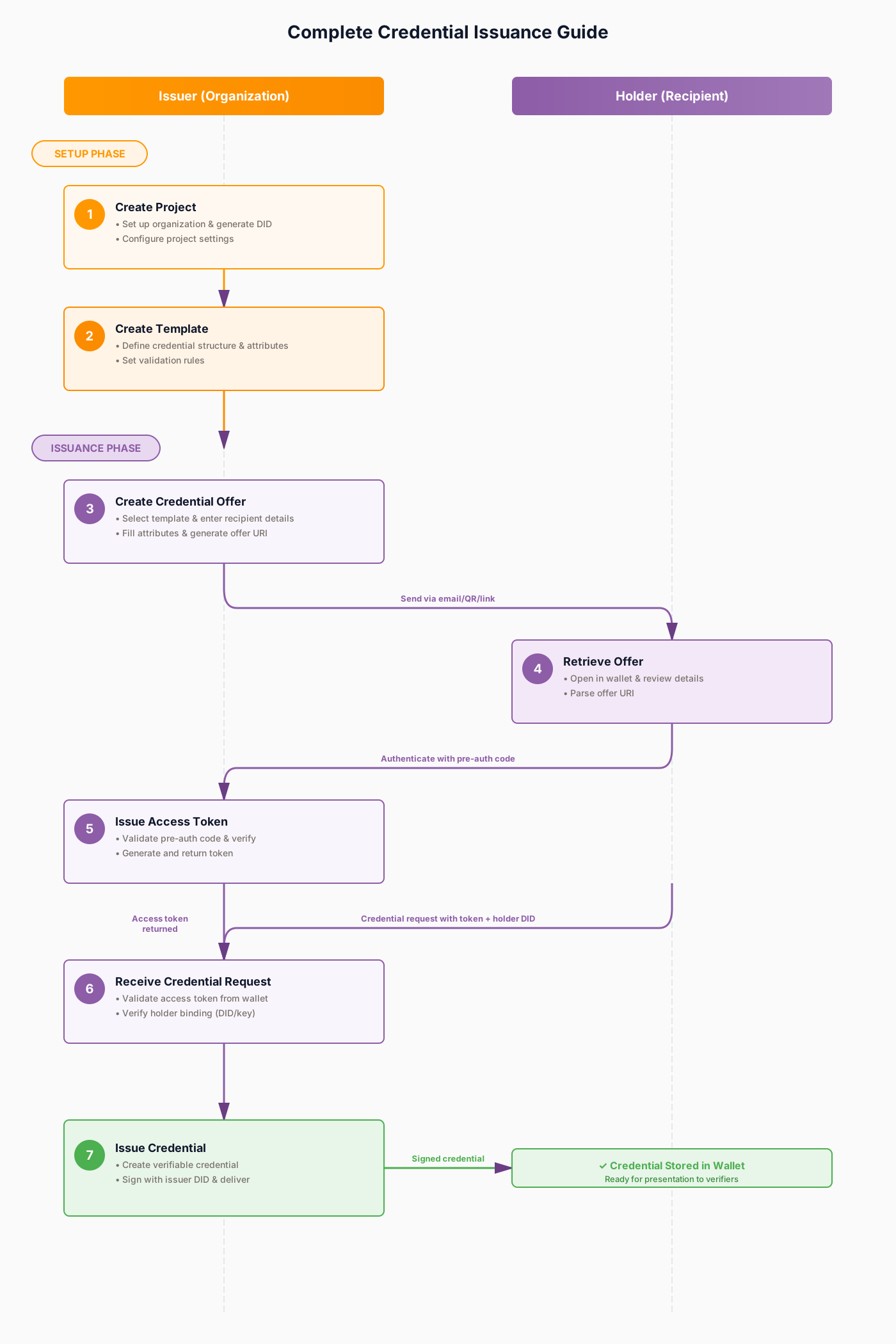
This comprehensive guide covers everything from initial setup to credential delivery. The process is divided into two phases:
Setup Phase
Step 1: Create Project (Issuer)
- Set up organization project and generate issuer DID
- Configure project settings and organization details
Step 2: Create Credential Template (Issuer)
- Define credential structure and required attributes
- Set validation rules and display properties
Issuance Phase
Step 3: Create Credential Offer (Issuer)
- Select template and enter recipient's email address
- Fill in credential attributes and generate offer URI
Step 4: Retrieve Offer (Holder)
- Receive offer via email/link/QR code
- Open in wallet and review credential details
Step 5: Issue Access Token (Issuer)
- Validate pre-authorization code from wallet
- Generate and return access token
Step 6: Receive Credential Request (Issuer)
- Receive request and validate access token
- Verify holder binding information (DID/key)
Step 7: Issue Credential (Issuer → Holder)
- Create and sign verifiable credential with issuer DID
- Deliver to holder's wallet for secure storage
Issuing a Credential
Step 1: Navigate to Credentials
- Select your project
- Go to the "Credentials" section
- Click "Issue Credential" or "New Credential"
Step 2: Select Template
- Choose the credential template you want to use
- Review the template details to understand what attributes are required
- Click "Continue" or "Next"
Step 3: Provide Recipient Information
-
Recipient Email: Enter the email address of the person receiving the credential
- This is where the credential offer will be sent
- The recipient will use this email to claim the credential
-
Recipient Name (optional): Add the recipient's name for personalization
Step 4: Fill in Credential Attributes
Based on your template, provide values for each required attribute:
-
Review the list of attributes from your template
-
Fill in each required field:
- Text Fields: Enter the information (e.g., name, ID number)
- Dates: Select dates from the date picker
- Numbers: Enter numeric values
- Custom Fields: Provide values for any custom attributes
Example attributes might include:
- Employee ID number
- Issue date
- Department name
- Certification level
- Expiration date
Step 5: Configure Issuance Settings
-
Validity Period:
- Valid From: When the credential becomes valid (defaults to current date)
- Expires: When the credential expires (optional, can be set in template)
-
Delivery Method:
- Email: Send credential offer via email (default)
- Direct Link: Generate a shareable link
- QR Code: Generate a QR code for in-person delivery
-
Additional Options:
- Transaction Code: Optional PIN for additional security
- Custom Message: Add a personalized message to the recipient
Step 6: Review and Issue
-
Review all the information:
- Recipient details
- Credential attributes
- Validity period
- Delivery method
-
Click "Issue Credential" to create the credential offer
Step 7: Credential Offer Created
After issuing, Skippy ID:
- Creates a credential offer
- Generates a unique credential offer URL
- Sends an email to the recipient (if email delivery is selected)
- Creates a credential record in your project
Best Practices
- Verify Recipient Email: Ensure email addresses are correct before issuing
- Complete Attributes: Fill in all required attributes accurately
- Set Expiration: Use expiration dates for time-sensitive credentials
- Track States: Monitor credential states to ensure successful delivery
- Follow Up: Check if recipients have claimed their credentials
Next Steps
After issuing your credential, learn about:
- Credential Offers: Understand how credential offers work and delivery methods
- Issuance States: Track the status of your issued credentials